Smart Home Integrations
Recommendation: Before setting up smart home integrations, we recommend configuring a static IP address for your GLORB. This ensures reliable access and better performance with automation systems. See the Network Settings Guide for detailed instructions.
HomeKit
Prerequisites
- Firmware Version: Ensure your GLORB is running firmware release 0.14.4-GLORB.1.2 or later. If you need to update, see the firmware update guide.
GLORB Setup
- Open the SNRGY app on your mobile device
- Navigate to Settings → WLED Controls → Config → Usermods
- Scroll down to the HomeKit section
- Check the Enable box
- Press Save
- Wait for your GLORB to reboot
HomeKit Setup
- Open the Home app on your iOS device
- Tap Add Accessory
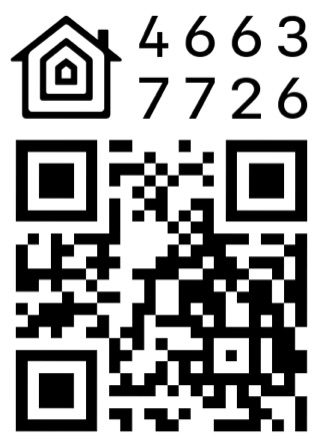
- Scan the QR code displayed below or enter the setup code manually
- Follow the on-screen instructions to complete the setup process
Note: This is not a certified HomeKit implementation. During setup, you will receive a warning about this, but you can safely press “Add Anyway” to proceed with the setup.
Amazon Alexa
The GLORB can be controlled via Amazon Alexa through its built-in Alexa emulation feature. You will need an Echo device for the setup process.
Here’s how to set it up:
GLORB Setup
- Navigate to WLED Controls → Config → Sync Interfaces
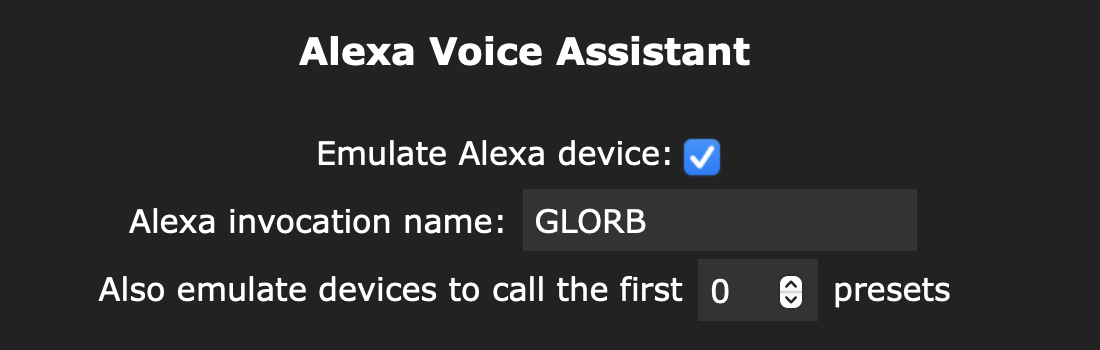
- Find the “Alexa Voice Assistant” section
- Enable “Emulate Alexa device”
- Enter your desired device name in the “Alexa invocation name” field
- Set the number of presets to 0 for best performance (see below)
- Save the configuration
- Restart your GLORB for changes to take effect
Preset Control
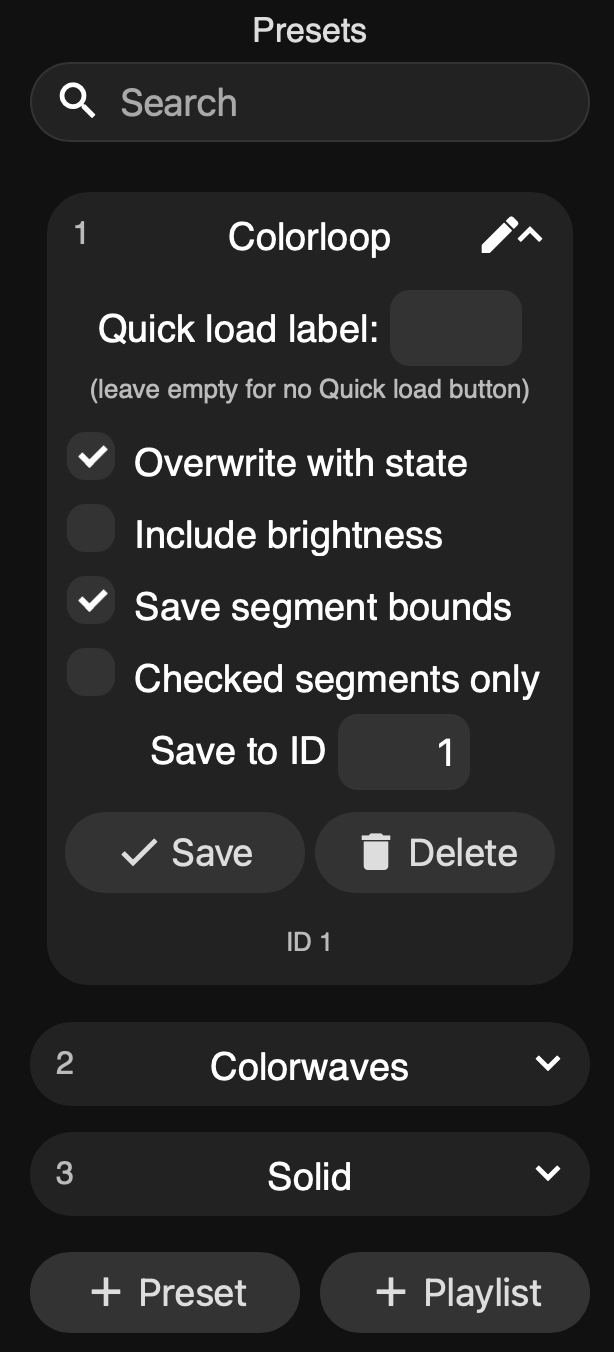
To control GLORB presets with Alexa, you can enable preset emulation in the Alexa settings. This will create virtual devices for the first X presets in your preset list (X between 1-9), but we recommend keeping this disabled as it can be unreliable.
If you do want to use presets, you can manage their IDs and names in WLED Controls → Presets tab. Make sure to use simple, clear names that Alexa can understand.
Alexa Setup
Once the GLORB is configured, you’ll need to add it to your Alexa app:
- Open the Alexa app on your mobile device
- Set up your Echo device (if not already paired)
- Tap on “Devices” at the bottom of the screen
- Tap the “+” (plus) icon in the top right corner
- Select “Add Device”
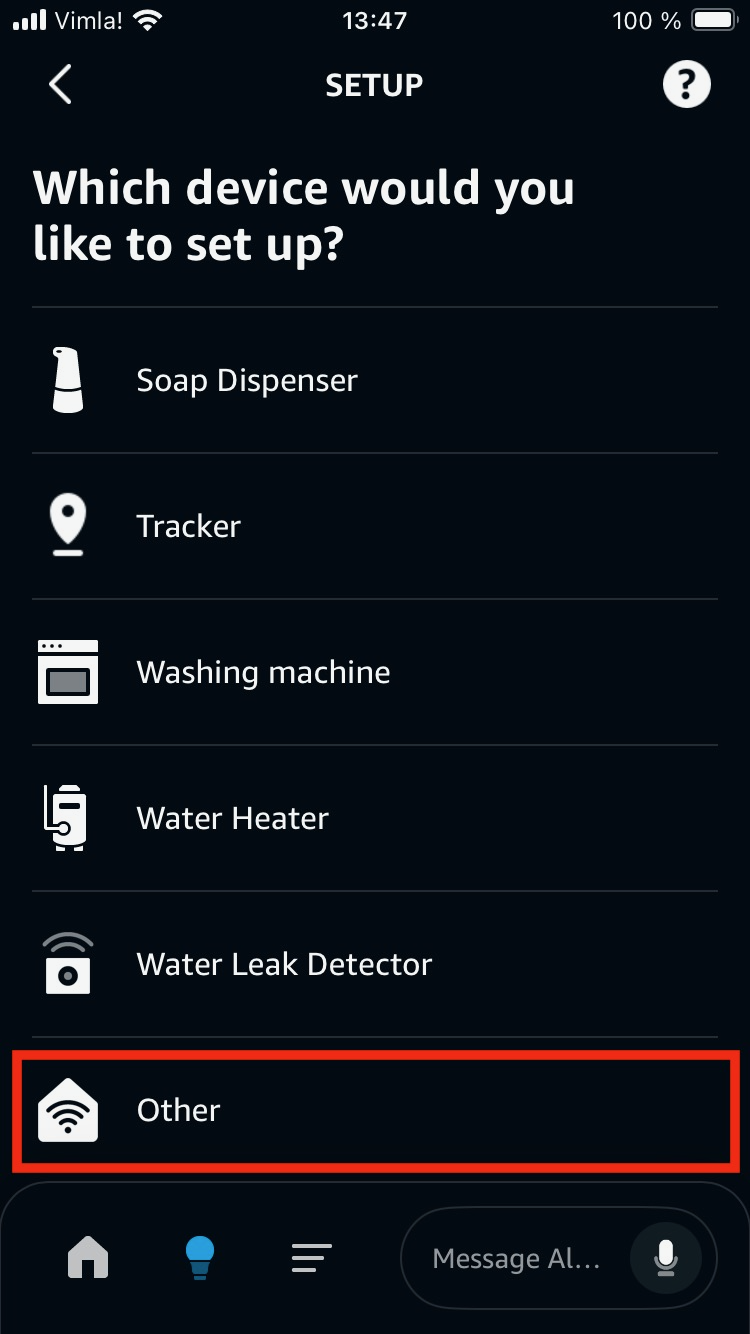
- Scroll down and select “Other” at the bottom of the list
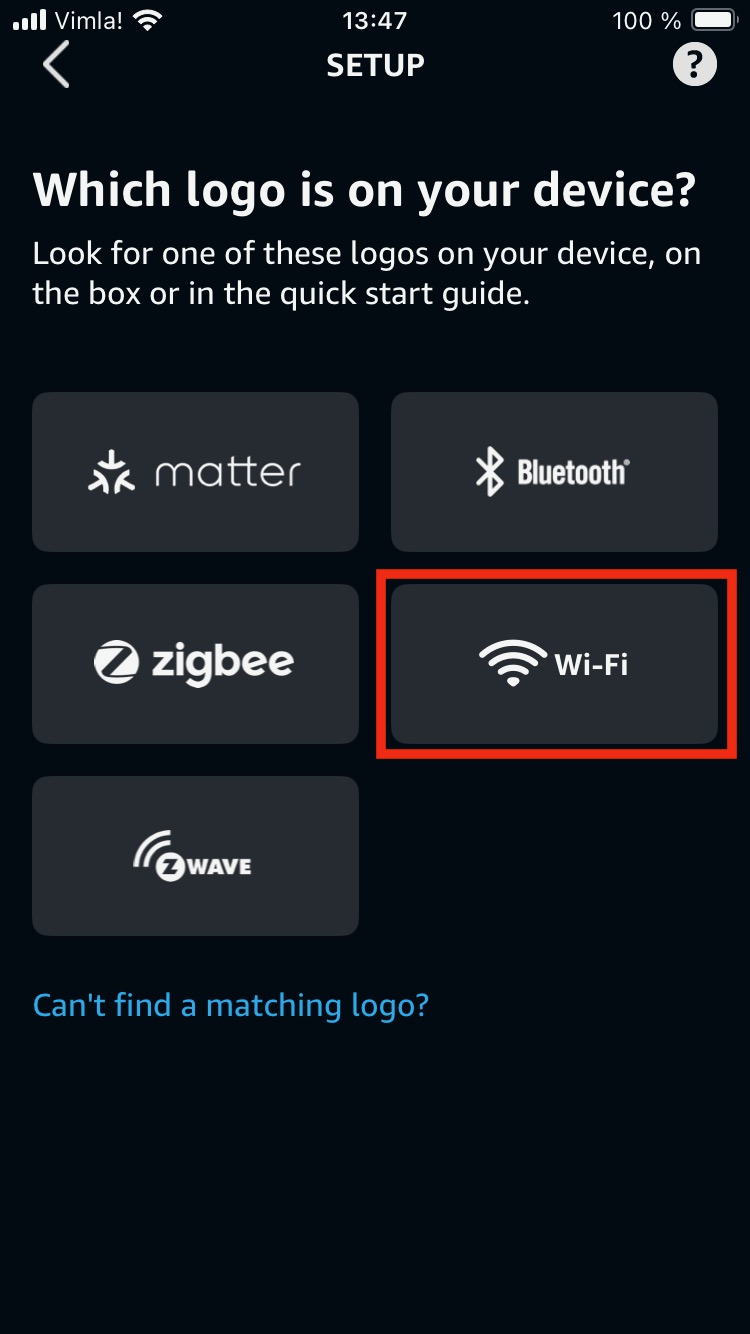
- Choose “WiFi”
- Press “Discover Devices” and wait while Alexa searches
- Your GLORB device should be discovered with the name you configured
- Follow the on-screen instructions to complete the setup
External Links
For a video walkthrough of setting up WLED devices with Alexa, check out this helpful guide by Chris Maher:
Philips Hue
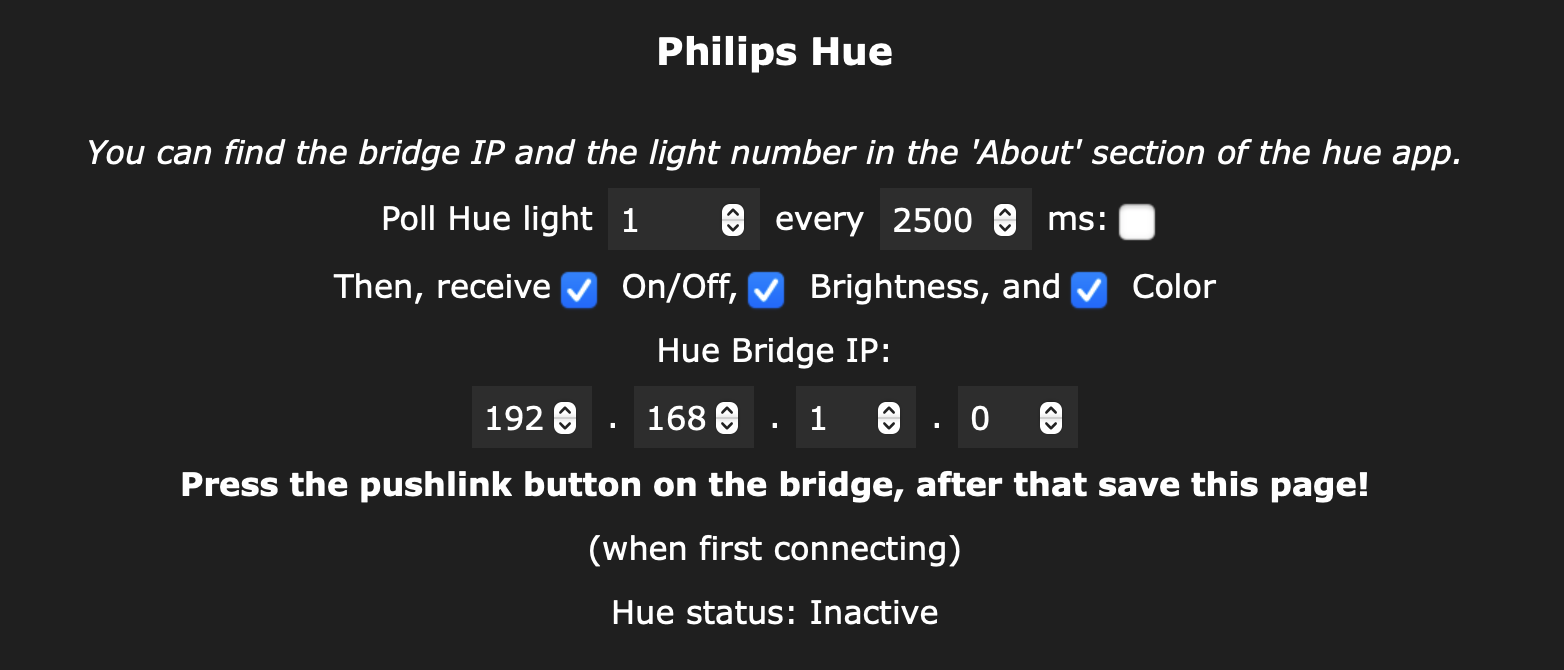
This feature allows you to set the color of your GLORB to that of one of your Hue lights. It does NOT enable individual control of your GLORB from the Hue app.
For more information about this integration for WLED devices, visit the WLED Knowledge Base.
GLORB Setup
- Navigate to WLED Controls → Config → Sync Interfaces
- Scroll down to the “Philips Hue” section
- Enter the IP address of your Hue bridge
- Enter the Light ID of your Hue light
Note: Newer versions of the Hue app do not display light IDs in the “About” section of the app anymore, to find it, the app Hue Config Viewer is highly recommended. It is available on the Play Store and App Store.
- Press save and reboot the GLORB